.png)
Google processes over 8.5 billion searches every single day. Yet most website owners have no idea how their site performs in those results. Google Search Console fixes that. It shows you which pages are indexed, what keywords send you traffic, where your site is losing clicks, and what errors need fixing. Best of all, it is completely free.
This guide walks you through how to use Google Search Console from setup to advanced strategy.
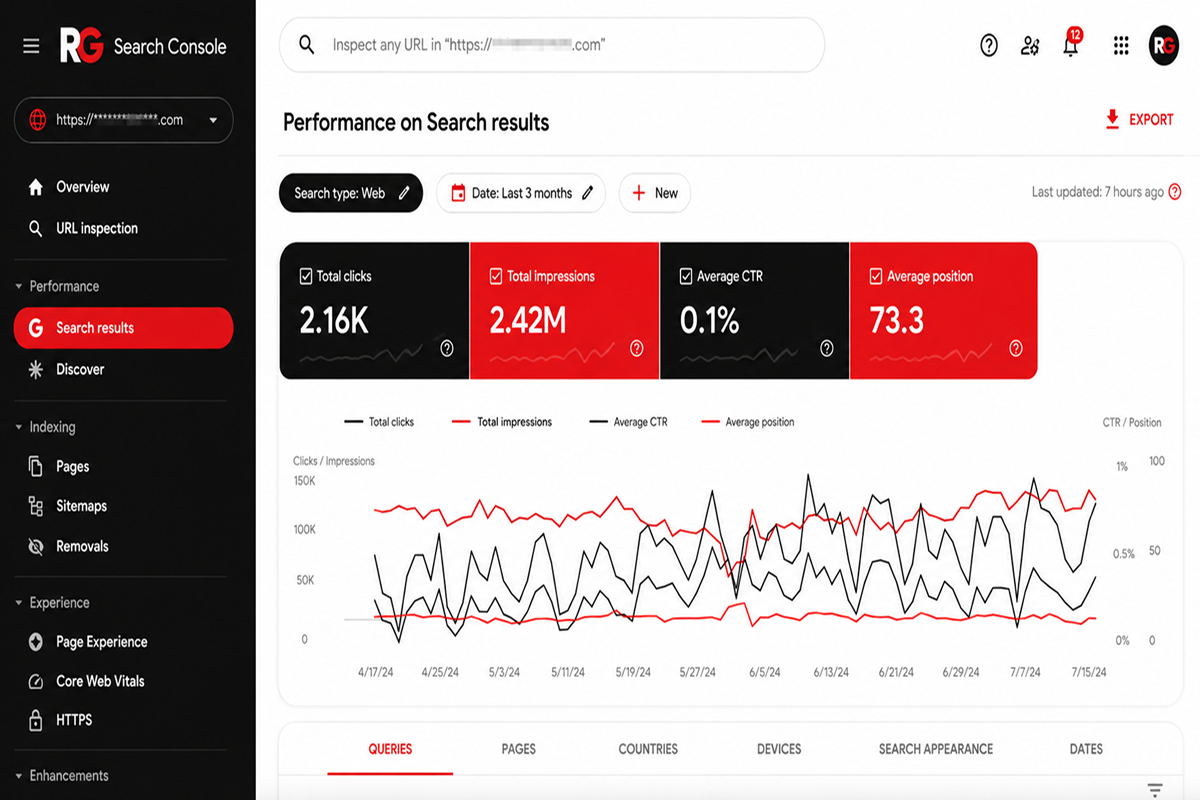
Google Search Console is a free platform built by Google for website owners and SEO professionals. It gives you direct data on how your site performs in Google Search. You can see which keywords you rank for, check for crawl errors, submit your sitemap, monitor Core Web Vitals, and track your backlink profile.
It is not the same as Google Analytics. Analytics shows you what visitors do once they land on your site. Search Console shows you what happens in Google before they ever click your link.
Both tools matter. But for SEO, Search Console is the one you open first.
Before Google shows you any data, you need to prove you own the site. The verification process is straightforward and takes less than ten minutes.
There are five ways to verify:
The HTML meta tag or Google Analytics route is fastest for most people. Once verified, your data starts showing up within a few days. Whether you run a local retail store, a law firm, or a SaaS platform, the setup process is the same.
A sitemap is a file that lists every page on your website. Submitting it helps Google find and index your content faster, especially on newer or larger sites.
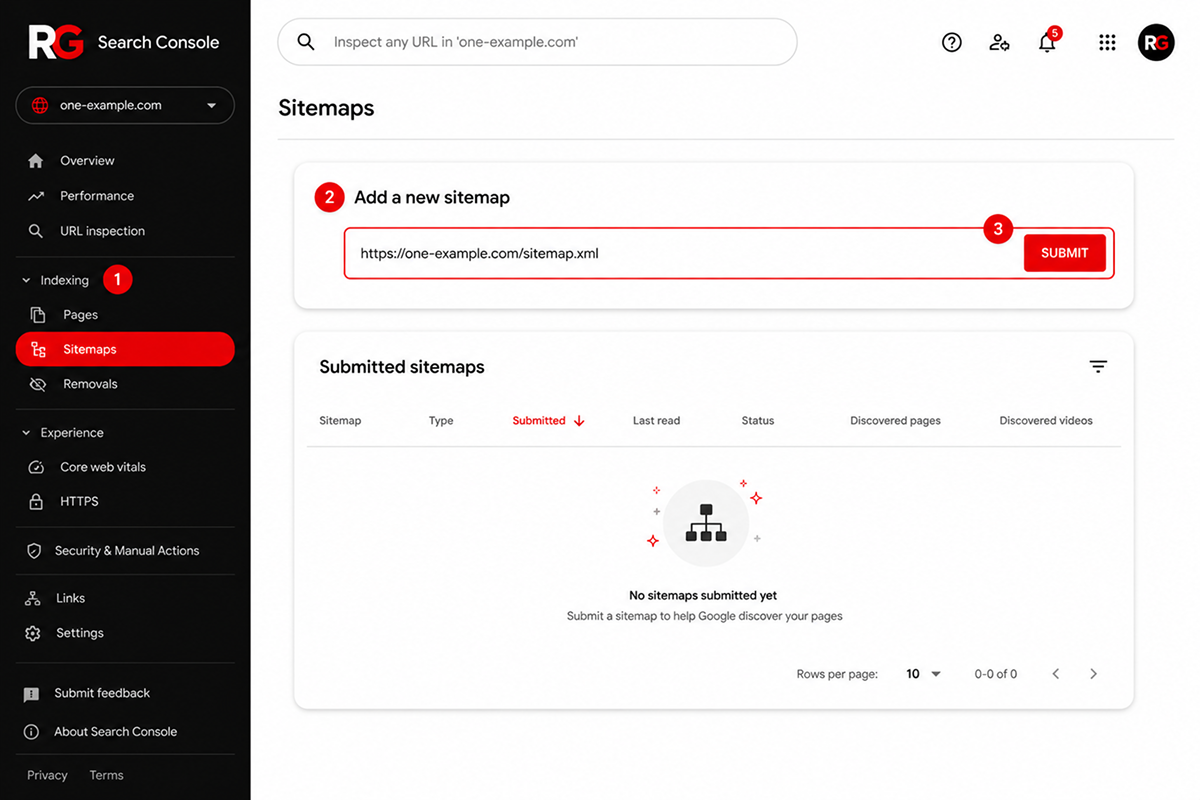
To submit your sitemap in Google Search Console:
WordPress and Shopify both generate sitemaps automatically. If your platform does not, a free plugin or tool can create one for you. After submitting, Search Console will confirm whether it was read correctly and how many URLs were found.
The URL Inspection tool lets you check whether any page on your site is indexed by Google. Type the URL into the search bar at the top of Search Console, and Google tells you its status instantly.
If a page is not indexed, it will tell you exactly why. Common reasons include:
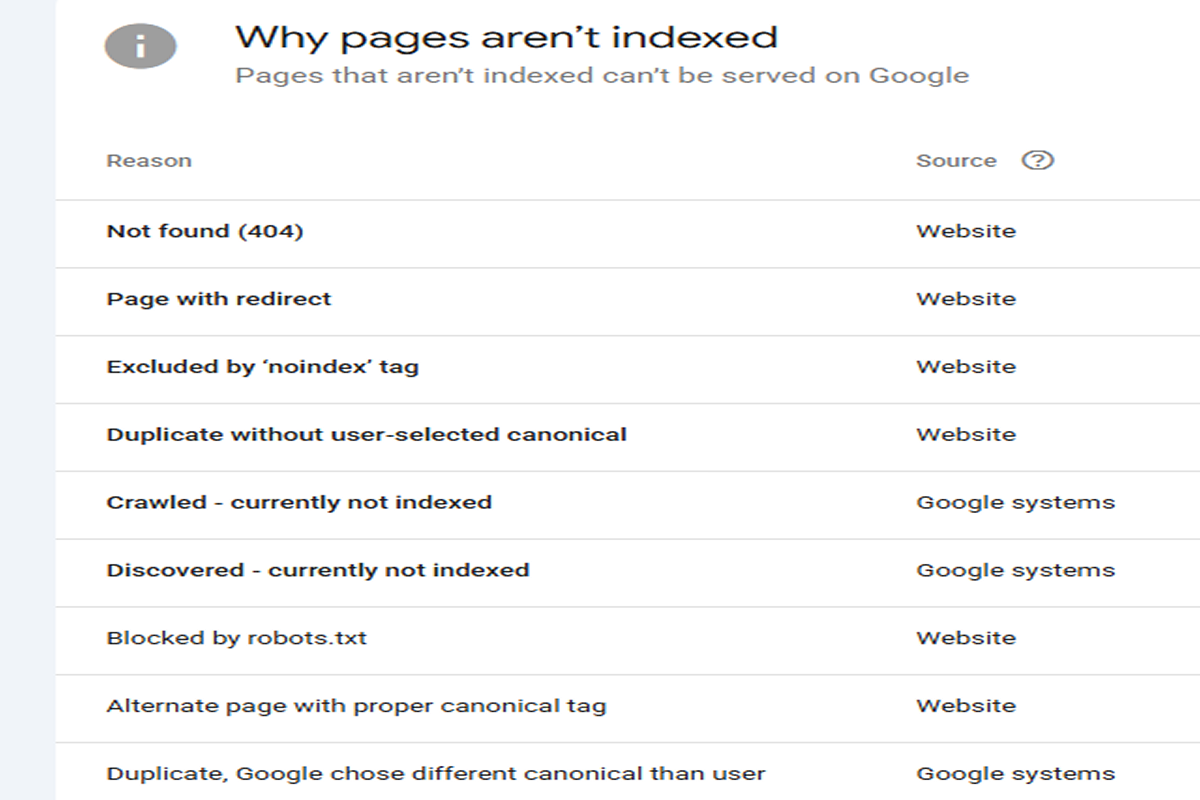
Caption: Google Search Console shows the reasons why your pages are not indexed.
You can request URL indexing from this same screen. This pushes the page into Google's crawl queue sooner. It is especially useful after publishing new content or making major changes to an existing page.
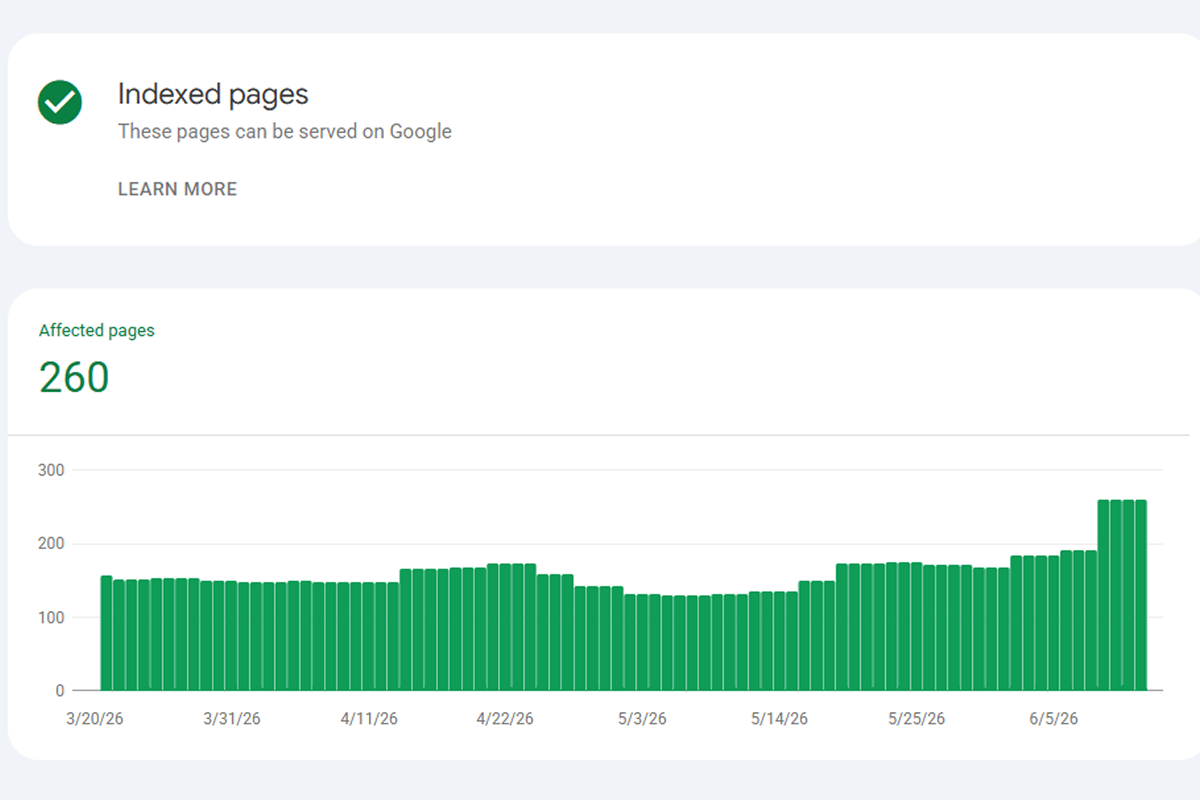
The Indexing report (formerly called Coverage) shows errors across your whole site in one view. Fix the errors flagged here and your pages are far more likely to appear in search results.
Getting your pages indexed is the first step to appearing in Google Search. Without indexing, even your best content is invisible to anyone searching for what you offer.
Benefits of having your pages indexed:
This applies whether you are managing a single clinico, a growing e-commerce business, or a multi-location restaurant group.
The Performance report is where most of your time in Search Console gets spent. It pulls together four core metrics for every page on your site:
You can filter by date range, country, device, or specific search queries. This is where you find the keywords sending you traffic and spot pages that rank well but fail to get clicks.
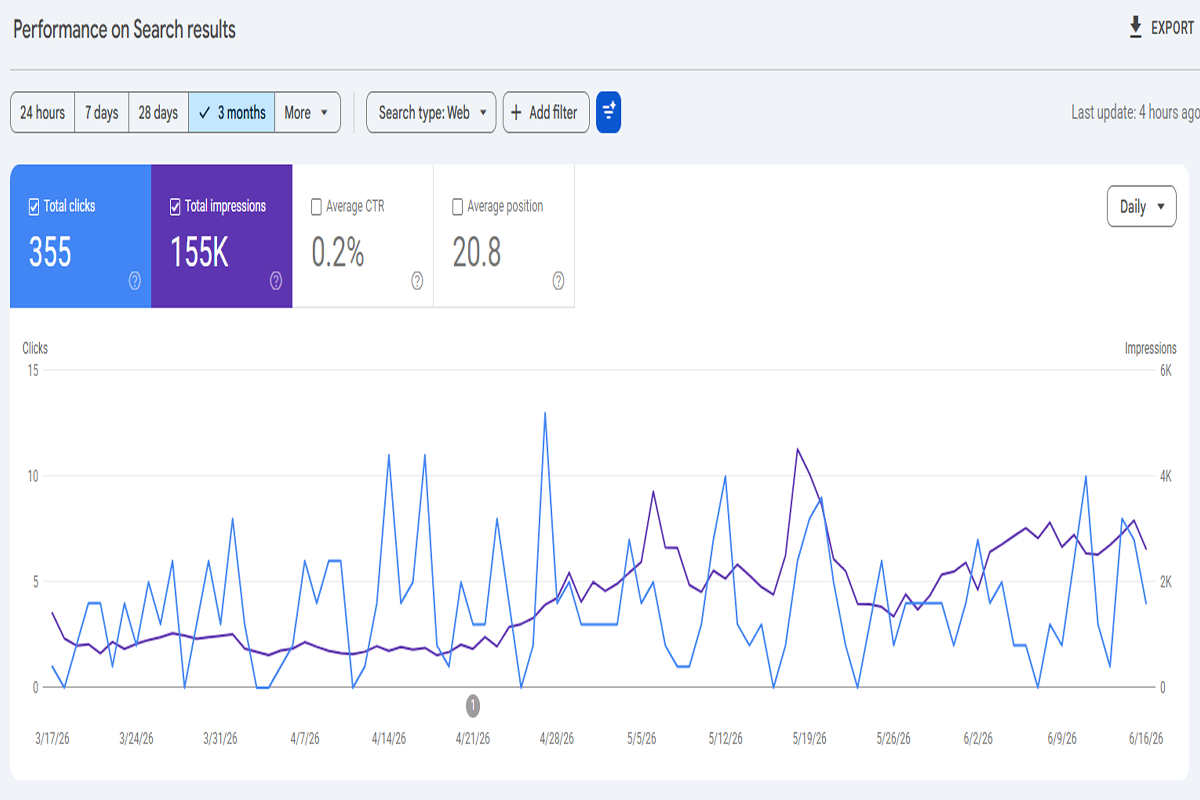
A high impression count with a low CTR almost always means your title tag or meta description needs work.
According to Semrush, the top organic result earns a 22 to 27% click-through rate. If your page sits in position one but pulls far less than that, better copy alone can recover significant traffic without any additional SEO work.
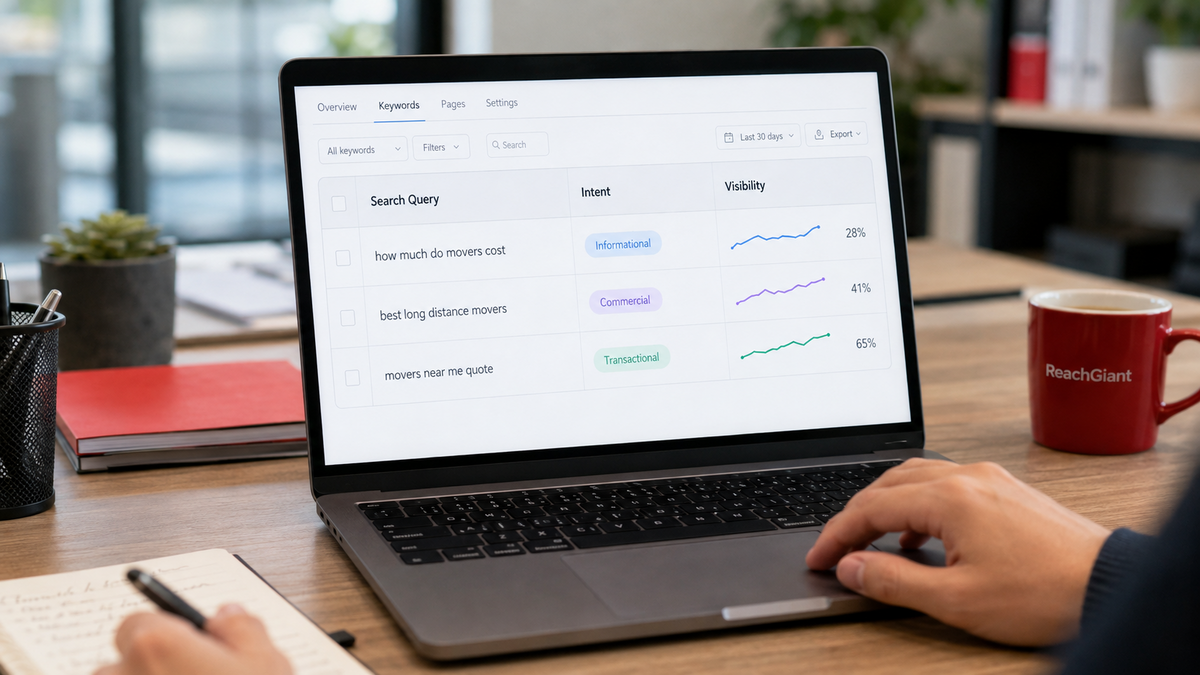
Search query data shows the exact terms people typed into Google before clicking your link. This is some of the most valuable free data available to any website owner.
Here is how to use it:
At ReachGiant, we use this data as part of every SEO strategy we build. It removes the guesswork and shows you exactly what Google users are looking for. If you want us to pull this data for your site and tell you what to act on first, book a free call.
Core Web Vitals are performance metrics that Google uses as part of its ranking algorithm. Search Console reports how your pages score on three key measures:
The Core Web Vitals report groups your pages into three categories: Good, Needs Improvement, and Poor. Start with the Poor pages and work through the list from there.
Common fixes include compressing images, removing unused JavaScript, and setting fixed dimensions on images and videos.
If your scores are in the red, ReachGiant's web design team can audit your site and identify exactly what is causing the drop.
Most beginners overlook this one. The Links report shows you who links to your site and how your internal pages connect to each other. Both types of data matter for SEO.
The external links section shows:
Use this data to see which content earns the most links naturally. Those pages tell you what topics resonate with your audience and with other sites in your space. You can then create more content on similar topics and use those high-performing pages as the foundation for your link-building outreach.
According to Practical Ecommerce, Google uses the number of unique linking domains as its primary measure of link value. Fifty sites with one link each carry more weight than one site with fifty links.
The internal links section shows which pages on your own site link to other pages. This is often where quick wins hide. If an important page like a service page or a product page has very few internal links pointing to it, adding links from related blog posts or other pages can improve its visibility in search with no new content required.
One note: the Links report shows a sample of your backlinks, not every link Google has found. For a full picture, pair it with a dedicated backlink tool.
Search Console Insights is a simplified version of Search Console designed for content creators and marketers. It combines data from Google Search Console and Google Analytics into one clean dashboard that is easier to read than the standard reports.

You need both Google Search Console and Google Analytics connected to the same property. Once linked, you can find Search Console Insights via the Search Console homepage. Google launched it as a beta feature and has continued expanding it as a standalone content performance tool.
Use the New Content section to track how fresh posts perform in their first few weeks. If a new page picks up impressions quickly but clicks are low, it is a signal to improve the title tag. If a page gets clicks but low engagement time, the content may not be answering the question well enough.
Use the Top Queries section to see which keywords drive traffic to each specific page. If a page ranks for terms that are slightly different from its main topic, update the content to address those queries more directly. That one change can increase both rankings and traffic without publishing anything new.
Most people do not think of Search Console as a content research tool. It is one of the best free ones available because every idea it surfaces comes from real searches your audience is already making.
Search Console data reflects real searches from real users. If you want to go further, you can also use AI to find new content ideas that complement what the data is already showing you.
According to Google, 15% of daily searches are completely new queries that have never been seen before, which means there are always fresh opportunities to find if you know where to look.
Google Search Console gives you a direct line into how your site performs in Google Search. From checking indexing to tracking search queries, reviewing your backlink profile, and monitoring Core Web Vitals, it covers the data that matters most for SEO in one free platform.
The key is to use it consistently and act on what you find. Small improvements to title tags, fixing indexing errors, and adding internal links to strong pages all compound over time into real ranking gains.
If you want help turning Search Console data into an actual SEO strategy, ReachGiant works with businesses across the US to do exactly that.
Our SEO services include full Search Console monitoring, technical SEO, and content planning built around what your audience is actually searching for. Get in touch or book a free meeting to get started.
What can I do with Google Search Console?
You can check which pages are indexed, see what keywords drive traffic, fix crawl errors, submit your sitemap, request URL indexing, review your backlink profile, and monitor Core Web Vitals scores. It is a free tool built for site owners and SEO professionals.
How does Google Search Console work?
Google crawls your site and reports what it finds in your Search Console account. You see data on search traffic, indexing status, errors, links, and page performance. The data updates regularly as Google continues to crawl and index your content.
What are the benefits of using Google Search Console?
It is free, accurate, and comes directly from Google. You can spot problems before they hurt your rankings, find keyword opportunities, monitor your backlink profile, and track SEO progress over time without paying for a third-party tool.
How do I use Google Search Console for SEO?
Start with the Performance report for your top queries and pages. Look for impressions without clicks, pages stuck on page two, and errors in the Indexing report. Use the Links report to review your backlink profile. Use the data to guide your content updates and technical fixes.
How do I use Google Search Console for beginners?
Verify your site, submit your sitemap, and open the Performance report. Review your top pages and top queries. Check the Indexing report for errors. Run a URL Inspection on new pages after publishing. Those four steps cover most of what beginners need to get started.
What is the difference between Google Analytics and Google Search Console?
Analytics tracks what visitors do once they land on your site. Search Console tracks how your site performs in Google Search before the click. You need both for a complete picture of your site's performance.
How do I improve content with Google Search Console?
Look at which pages get impressions but few clicks. Rewrite the title and meta description. Check which queries a page ranks for and make sure the content answers those questions clearly. Update outdated information and add new sections where relevant.
How can I use Google Search Console to come up with content ideas?
Go to the Performance report and sort queries by impressions. Look for topics with high impressions but no dedicated page on your site. Those are gaps you can fill with new content that already has proven search demand behind it.
How do I enable the content ideas feature in Google Search Console?
This is available through Search Console Insights, which links your Search Console and Google Analytics accounts. Once connected, the tool surfaces content opportunities based on your actual traffic and query data combined.
How do I index a new page using Google Search Console?
Open the URL Inspection tool, enter the page URL, and click Request Indexing. Google adds the page to its crawl queue. It usually gets indexed within a few days, though it can take longer on newer sites with less crawl authority.
What is the Links report in Google Search Console?
The Links report shows the external sites that link to your pages, your most linked pages, the anchor text other sites use, and how your internal pages link to each other. It is a free way to monitor your backlink profile directly from Google.
What is Search Console Insights?
Search Console Insights is a simplified dashboard that combines Google Search Console and Google Analytics data. It is designed for content creators and marketers who want a cleaner view of how their pages perform without navigating the full Search Console interface.


.png)

.png)
.png)

.png)
.png)
.png)






.svg)