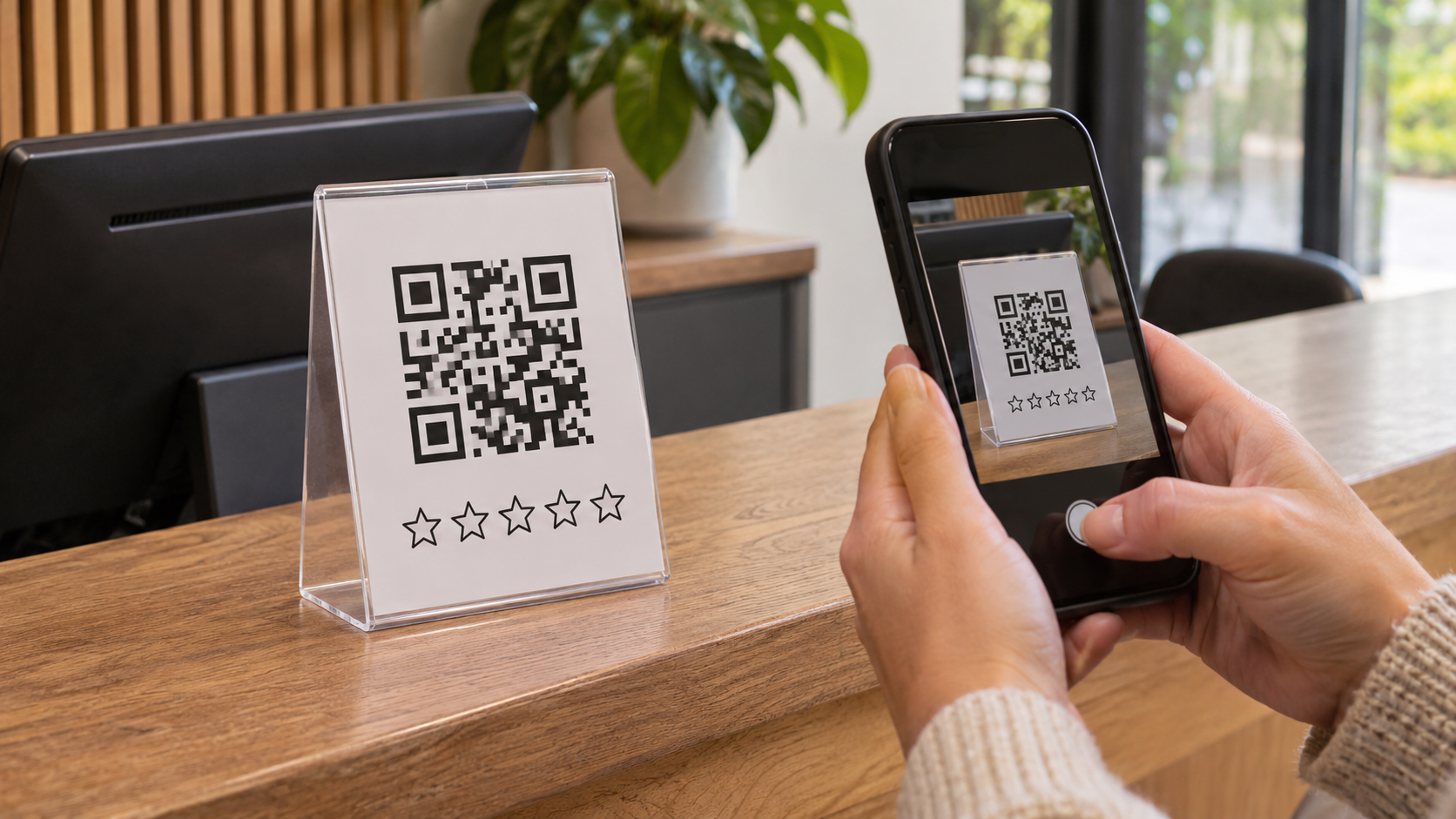
A Google review link takes customers straight to the review box for your business, so leaving a review takes seconds instead of a search. Reviews are a core part of local SEO, because they shape both your visibility and the trust a customer feels before calling. This guide shows how to create a Google review link, turn it into a QR code, and share both without breaking Google’s rules. ReachGiant is an online marketing agency, and reviews are one of the simplest local wins for a small business. The steps below take only a few minutes.
A Google review link is a short URL that opens the review form for your Google Business Profile. A customer taps it, signs in to a Google account, and writes the review without hunting for your listing. The fewer steps involved, the more likely a happy customer is to finish.
Picture a plumber who wraps up a repair on a Tuesday afternoon. The homeowner is pleased, but a search for the right listing is one chore too many. A link in a follow-up text turns that good mood into a review.
The same link also works as a QR code, which suits counters, receipts, and printed materials. Both come from the same place in your profile.
Google looks at distance, relevance, and prominence when it ranks local results. Review count and score are part of prominence, so steady customer reviews give your profile more to work with. Reviews are one factor among several, but they are one you can influence every week.
Reviews also persuade the person reading them. A profile with recent, specific feedback feels safer to call than one with none. Pair reviews with local search terms, and our guide to SEO keyword examples shows which keyword types to target.
Here is how to get a Google review link in four steps.
Google’s help page on how to create a link or QR code to request reviews lists the same path. Test the link in a private browser window before you share it, so you see exactly what a customer sees.
Every business on Google has a Place ID, and that ID can build a working review link. This helps when you manage reviews for a client or an employer and do not own the profile. Find the ID with Google’s Place ID Finder, then add it to the address below.
https://search.google.com/local/writereview?placeid=YOUR_PLACE_ID
Whenever you can, prefer the link from the profile itself, since Google generates it for you. A free Google review link generator can also build the address, but it only wraps the same pattern.
Google’s help page says the QR code is generated from a computer browser. Download the image, then print it on receipts, table cards, packaging, or a counter sign. Print it large enough to scan from arm’s length.
A Google review QR code works best where customers already look, such as near the register or the exit. Scan it yourself with a phone before it goes to print.
Sharing the link well comes down to timing and tone. Send the review request soon after a good experience, while the visit is still fresh. Google suggests thank-you emails, the end of a chat, and receipts as natural spots.
Here is how to send a Google review link by text or email. Keep the message short and personal. Something like “Thanks for visiting today, and if you have a minute, we would love your feedback” works well, with the link underneath.
Email signatures, invoices, and follow-up messages are also easy places for the link. Pick two or three spots and keep them consistent.
Google wants businesses to ask for reviews, and it provides the link for that purpose. What it does not allow is steering the result. Ask every customer in the same neutral way, and never attach rewards or other incentives to the review.
Two habits cause the most trouble. One is offering discounts or gifts in exchange for reviews, and the other is asking only the customers you expect to be happy. Both can get reviews removed and your profile restricted.
A critical review will eventually arrive, and our guide on how to respond to negative reviews covers how to answer it. For the bigger picture, see how to rank higher on Google Maps.
Start with the customer’s side. They need a Google account to post, so they may be asked to sign in first. If the review box never opens, reviews may not be available for that business category or region.
Next, check the link itself. A mistyped Place ID or a link copied from the wrong profile sends people to the wrong place. A new review can also take a little while to appear, so give it time before assuming something broke.
If the profile itself looks thin, our guide to optimizing your Google My Business profile is a good next step. For the wider picture, see our digital marketing examples.
The link removes the biggest barrier to a review, which is effort. Create it today, add the QR code where customers already look, and ask every customer the same simple way.
To talk through how reviews fit into your local SEO plan, reach out to ReachGiant.
How do I get the Google review link for my business?
Open your Business Profile, select Read reviews, then Get more reviews, and choose Copy. You can also download a QR code from the same window.
How do I create a Google review QR code?
Use the Get more reviews window in your Business Profile and download the QR code. Google’s help page says it is generated from a computer browser.
Can I create a Google review link without access to the profile?
Yes. Find the business’s Place ID with Google’s Place ID Finder and add it to the standard review address. Test the link before sharing it.
Is it against Google’s rules to ask for reviews?
No. Asking is allowed, and Google provides the link for it. Offering rewards or asking only happy customers is what breaks the rules.
Why is my Google review link not working?
The customer may need to sign in, the Place ID may be wrong, or reviews may not be available for your category or region. Test the link in a private browser window.
How do I send my Google review link to customers?
Share it by email, text, receipt, chat, or a printed QR code soon after a good experience. Ask every customer the same way, with no rewards attached.